
Guide for researchers to connect to the Informatics Compute Facility (ICF)
Overview
For security, the University network is behind a firewall so not all traffic from the internet is allowed through. The School of Informatics network is within the University network, but also has its own firewall for further protection.
A Virtual Private Network (VPN) securely allows traffic from your computer to appear to be inside another network. For example, the University VPN allows you to access resources within the University network. The relationship between the University/Informatics VPNs and networks is depicted here.
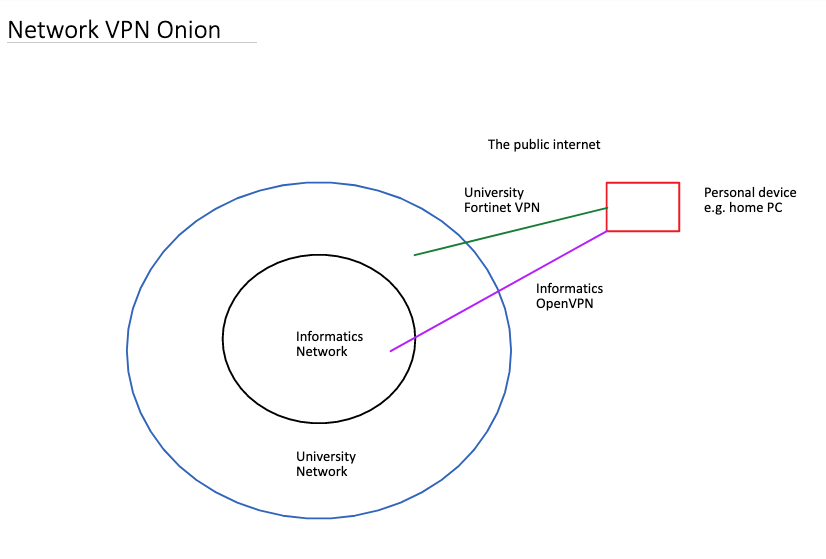
Secure shell (ssh) enables private login connections using a password or key file. This can also allow access to machines in the Informatics Network without using the University VPN through the remote.ssh.inf.ed.ac.uk gateway. However an application needs to be made to use this. There is always staff.ssh.inf.ed.ac.uk available as a gateway when using the University VPN.
When using ssh, entering passwords multiple times or having key files for multiple machines can become tedious and/or a security risk. The School of Informatics uses Kerberos to issue time-limited tickets for authentication so passwords need to be entered much less frequently. This also provides the authentication mechanism so that the Informatics network file system (AFS) can be used easily.
Connecting
The informatics servers are behind the informatics firewall so using the informatics VPN allows direct ssh without a gateway. If using the university VPN, eduroam or other parts of the university network then you can connect using an ssh gateway, e.g.,
ssh UUN@student.ssh.inf.ed.ac.uk
Rather than setting up ssh keys, consider using Kerberos single sign-on which is included in DICE. For self-managed machines this might have to be installed, e.g., Ubuntu, but should be present on a mac, while Auristor OpenAFS is recommended for windows.
Then to use Kerberos for a self-managed machine open a terminal (Linux, mac) and follow the guide which is summarized below:
kinit -f yourusername@INF.ED.AC.UK so the ticket can be forwarded, then edit ~/.ssh/config to have
Host *.inf.ed.ac.uk

User UUN

GSSAPIAuthentication yes

GSSAPIDelegateCredentials yes
If not on a mac you can also add
GSSAPIRenewalForcesRekey yes
To automatically connect via an ssh gateway to mydesktop, for example, add to ~/.ssh/config
Host mydesktop

User UUN

GSSAPIAuthentication yes

GSSAPIDelegateCredentials yes

HostName %h.inf.ed.ac.uk

ForwardX11 no

ProxyCommand ssh -x %r@student.ssh.inf.ed.ac.uk -W %h:%p
Resources
The Informatics Compute Facility (ICF) is dedicated to GPUs and includes the Research cluster. It has around 344 GPUS including 32 Nvidia L40s across 8 servers (scotia01-08), 8 H200 some of which are partitioned into smaller virtual GPUs (saxa), and 8 H200 in 1 node (herman).
There are two head nodes (hastings and stanger) that can be accessed using ssh icf or ssh icf2. The shared home filesystem is lustre on the ICF. This is in contrast to the rest of the School which uses AFS, although the head nodes also allow access to AFS home directories.
The status of the ICF can be viewed on the web: https://icfwebview.inf.ed.ac.uk (access is restricted by the informatics firewall)
Use sinfo to see the partitions (queues) where jobs can be queued until resources are free on their associated compute nodes. To display the types of GPUs and their partition/node the following could be used: sinfo -N -O partition,nodelist,gres:40 Check that the slurm scheduler can start an interactive session on a node using one GPU of any type:
srun --partition=ICF-Free --gres=gpu:1 --pty bash
For non-interactive jobs you could use sbatch slurmscript.sh. To show jobs in the queues: squeue. Note if the cluster is busy then a job might wait for quite a while depending on its priority. This can be affected by how much resources it will use and how much the user has recently used. To see sorted priority of jobs in the queue: sprio -S -Y
For research, there is the free queue --partition=ICF-Free. Here jobs can be preempted by paid jobs so please consider using checkpoints. Paid jobs should be sent to --partition=ICF-Research to have a higher priority, where account and QOS codes need to be provided.
Please do not run calculations on the head nodes: use the compute nodes for this. By keeping the head nodes free of intensive processes they will be remain responsive for all to submit jobs and move their data. Commands can be given lower priority using, e.g., nice -n 20 command so they take fewer resources. Please also be mindful of resources used by extensions in VScode, or similar, if using remote-ssh to connect to a server.
Please try not to have jobs write large amounts of data to network filesystems, but instead use a disk on the compute node which will be named as /disk/scratch or similar. This is faster than using the shared filesystem and keeps it accessible for everyone. If the output of a job needs to be moved to the shared lustre filesystem when it has finished, then consider using tar if it has many files. From lustre it can then be copied to AFS with cp, or to a remote machine using scp or rsync.
If possible try to remove your files in /disk/scratch when the job finishes. Do not use scratch spaces for storing important data after a job has ended: they are not backed up and older files from finished jobs will be removed if the disk gets full (cluster tips).
There are cuda compilers and libraries available on nodes in /opt that can be added using environment modules (module av shows what's available)
Additionally there is a PyTorch and cuda python virtual environment, that an activated virtual environment can link to by running, for example, /opt/venv-cuda132-pytorch-2.12.1/add_pytorch while the link can be removed by /opt/venv-cuda132-pytorch-2.12.1/remove_pytorch (GPGU computing)
For calculations that would benefit from many processors rather than GPUs there is the University's research cluster Eddie. Other cluster and GPU facilities are also available to users in the School of Informatics. These include GPU desktops, and servers outside the ICF that do not have a job scheduler.
The kerberos tickets, which are also used for AFS, are limited to around 18 hours. The status can be checked with tokens or klist. A new ticket can manually be created to get another 18 hours using renc if, for example, AFS access has been lost. A task may be run in the background for up to 28 days using longjob which can also be used to maintain a tmux session. For long calculations, it might be more appropriate to send them to the queue on the ICF.